Mastering Proxy Configuration in Azure DevOps: A Practical Guide for Secure and Scalable Development
Blog post description.
cloud devops interview support
4/1/20263 min read
In today’s enterprise environments, security and network control are non-negotiable. Many organizations operate behind strict firewalls and rely on proxy servers to manage outgoing and incoming traffic. If you're working with Azure DevOps in such an environment, understanding proxy support is essential to ensure smooth CI/CD pipelines, repository access, and artifact management.
This guide walks you through what Azure DevOps proxy support means, why it matters, and how to configure it effectively.
What is Proxy Support in Azure DevOps?
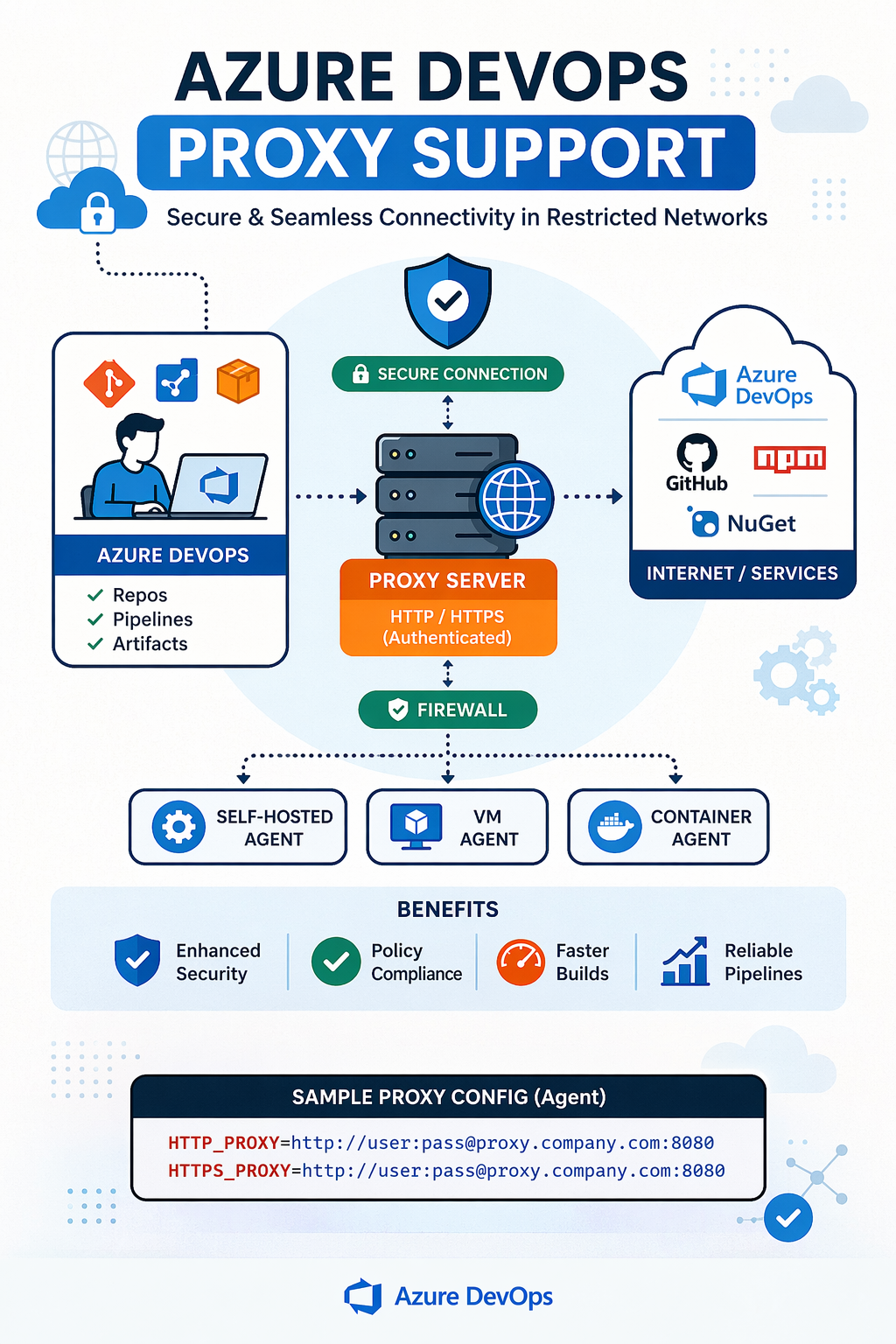
Proxy support refers to the ability of tools and services within Azure DevOps to communicate with external networks through an intermediary server (proxy). Instead of directly accessing the internet, all requests are routed through the proxy, which enforces security policies, monitors traffic, and can cache responses.
In a DevOps context, proxy support ensures that services like build agents, Git clients, and package managers can still function properly—even in restricted corporate networks.
Why Proxy Configuration Matters
Without proper proxy configuration, you may face issues such as:
Build pipelines failing due to inability to fetch dependencies
Git operations (clone, push, pull) timing out
Extensions and integrations not working
Security compliance risks
A well-configured proxy setup ensures:
Secure communication with external services
Consistent pipeline execution
Compliance with enterprise IT policies
Better network performance through caching
Types of Proxy Configurations
Azure DevOps environments typically work with the following proxy types:
1. HTTP/HTTPS Proxy
The most common setup, where web traffic is routed through a proxy server using HTTP or HTTPS protocols.
2. Authenticated Proxy
Requires credentials (username/password) to access the proxy. Often used in enterprise environments.
3. Transparent Proxy
Operates without requiring explicit configuration on the client side, though it may still impact DevOps workflows.
Configuring Proxy for Azure DevOps Self-Hosted Agents
Self-hosted agents are commonly used in secure environments. To configure proxy settings for them:
Step 1: Set Environment Variables
Before configuring the agent, define proxy variables:
HTTP_PROXY=http://username:password@proxyserver:port
HTTPS_PROXY=http://username:password@proxyserver:port
These variables allow the agent to route traffic through the proxy.
Step 2: Configure the Agent
During agent setup, the system will detect proxy settings from environment variables. If needed, you can manually specify them in the .env or configuration files.
Step 3: Validate Connectivity
Run a test pipeline to confirm the agent can:
Access Azure DevOps services
Download dependencies
Push artifacts
Configuring Git with Proxy
Git is a core part of Azure DevOps. If you're behind a proxy, configure Git as follows:
git config --global http.proxy http://proxyserver:port
git config --global https.proxy http://proxyserver:port
For authenticated proxies:
git config --global http.proxy http://username:password@proxyserver:port
This ensures all Git operations work seamlessly within restricted networks.
Handling Package Managers Behind Proxy
Many DevOps pipelines rely on package managers like npm, NuGet, or Maven. Each requires proxy configuration:
npm
npm config set proxy http://proxyserver:port
npm config set https-proxy http://proxyserver:portNuGet
Add proxy settings in NuGet.configMaven
Configure proxy in settings.xml
Without these configurations, dependency downloads may fail during builds.
Best Practices for Azure DevOps Proxy Setup
To avoid common pitfalls, follow these best practices:
1. Use Secure Credential Storage
Avoid hardcoding proxy credentials. Use secure vaults or environment variables.
2. Whitelist Required URLs
Ensure your proxy allows access to Azure DevOps endpoints and related services.
3. Monitor Logs
Check agent and pipeline logs regularly to detect proxy-related failures early.
4. Test Regularly
Network policies may change. Periodically test pipelines to ensure continued connectivity.
5. Use Service Tags (If Applicable)
For cloud environments, use Azure service tags to simplify firewall and proxy rules.
Common Challenges and Solutions
Issue: Agent cannot connect to Azure DevOps
Solution: Verify proxy settings and ensure required endpoints are not blocked
Issue: Authentication failures
Solution: Double-check credentials and encoding in proxy URL
Issue: Slow pipeline performance
Solution: Enable caching on proxy server or optimize routing
When to Use Proxy vs Direct Access
While proxies enhance security, they can introduce latency. If your organization allows, consider:
Using direct access for non-sensitive operations
Hybrid setups (proxy for external traffic, direct for internal services)
The right approach depends on your organization’s security policies.
Final Thoughts
Proxy support in Azure DevOps is not just a technical requirement—it’s a critical component of enterprise-grade DevOps infrastructure. When configured correctly, it ensures secure, reliable, and scalable workflows without compromising performance.